
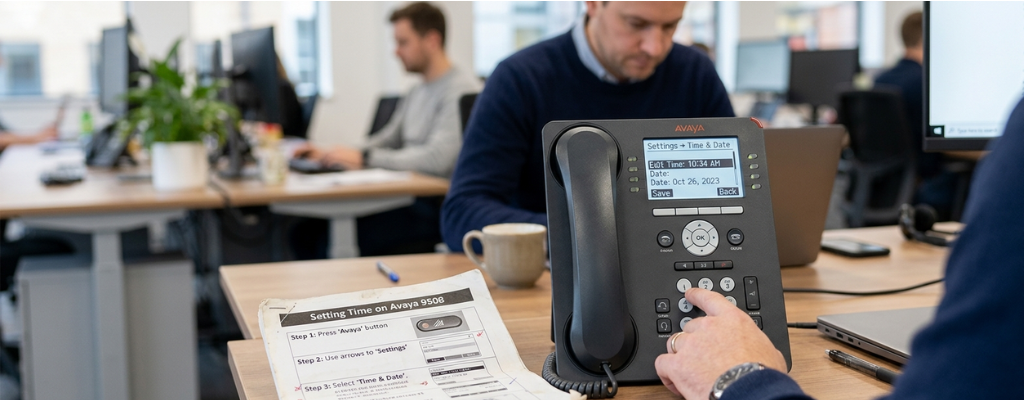
How to Set the Time on Avaya 9508 Phone (Step-by-Step Guide for IP Office) | Morgan Birgé
Step-by-Step Guide to Setting the Time on Your Avaya 9508 Phone
What You Need to Know Before You Start
The Avaya 9508 is a digital desk phone used on Avaya IP Office systems. Like all Avaya IP phones, it displays the time pushed from the phone system, not from an internal clock. That means you can't change the time directly on the phone itself, the way you would on a smartphone.
There are two ways to fix a wrong time on a 9508:
From the phone: using the System Admin menu, if your system has been set up to allow it
From IP Office Manager: the admin software that controls all settings for the phone system
The method you use depends on how your system is configured.
What the 9508 Display Shows
The Avaya 9508 supports 24 programmable call appearance and feature buttons, with labels displayed directly on the main screen. The phone's display also shows call information and system status, including the current time and date when the phone is idle.
The time display format, 12-hour or 24-hour, is controlled by the telephone system, not the individual phone. The system administrator sets this format for all phones at once from IP Office Manager. If every phone in the office shows the wrong time, the fix is at the system level, not on each individual handset.
Method 1: Setting the Time on the 9508 Phone
This method only works if your system administrator has granted your phone System Admin rights. If the System Admin option doesn't appear in your menu, skip to Method 2.
Step 1: Press the Features soft key on the phone display. If you're on an active call, press the right arrow key first, then press Features.
Step 2: Use the up and down arrow keys to scroll to Phone User and press Select.
Step 3: Scroll down to System Admin and press Select. Note: this option only appears if your user account has been configured with System Phone Rights by the administrator. If it doesn't appear, you don't have permission to change the time from the phone.
Step 4: Scroll down to Time and press Select or OK. The current system time is displayed.
Step 5: Enter the required time in 24-hour clock format. Use either the or # key to enter the colon separator. For example, for 2:30 PM, enter 1430, then press Done.
Step 6: Scroll back and select Date to correct the date if needed. Enter the date in DD/MM/YY format using the * key as the separator. For example, enter 250725 for July 25, 2025, then press Done.
Step 7: Press Back, then Exit to return to the idle screen. The updated time will appear within a few seconds.
Method 2: Setting the Time From IP Office Manager
Use this method when the phone doesn't have System Admin rights, or when you want to set up automatic time sync so the correction is permanent.
Option A: Automatic (Recommended)
This is the best long-term fix. The system syncs to a time server and stays accurate automatically.
Step 1: Open IP Office Manager on your PC and receive the current configuration.
Step 2: Click System in the left panel, then select the System tab.
Step 3: Set Time Setting Config Source to SNTP.
Step 4: Enter the SNTP server address. If you run a Windows network, entering the IP address of your Primary Domain Controller keeps all devices, including the phone system, in sync automatically. For a public server, use 0.pool.ntp.org.
Step 5: Confirm the Time Zone is set correctly for your location.
Step 6: Click Save, then Merge. All phones, including the 9508, will update within a few minutes.
Option B: Manual From a Phone (Requires Setup First)
If no time server is available, you can set the time manually from the 9508, but the phone needs to be granted permission first.
Step 1: In IP Office Manager, go to System > System tab and set Time Setting Config Source to None.
Step 2: Click User, select the user whose 9508 you'll use, then click the User tab.
Step 3: Change System Phone Rights from None to Level 2. Click OK, then Save and Merge.
Step 4: Return to the 9508 and follow Method 1 above. The System Admin option will now be visible in the menu.
Why the Time Keeps Coming Back Wrong
If you set the time and it reverts again, one of these is almost certainly the cause:
SNTP is still active: if the system has an automatic time source configured, any manual change will be overridden on the next sync. Disable SNTP or fix the server address first.
Wrong time zone: SNTP delivers UTC time; without the correct time zone set in IP Office Manager, the display will be hours off, regardless of the server being correct.
DST not configured: phones showing a time that's off by exactly one hour almost always points to a Daylight Saving Time or time zone configuration issue rather than an incorrect time entry.
Firewall blocking port 123: SNTP uses UDP port 123 to reach external time servers. If this port is blocked, the system silently fails to sync.
Quick Reference
Change time from 9508: Features > Phone User > System Admin > Time > enter in 24hr format using * as colon > Done
Change date from 9508: Same path > Date > enter DDMMYY > Done
Set up automatic sync: IP Office Manager > System tab > Time Setting Config Source = SNTP > enter server > set time zone > Save and Merge
Grant phone admin rights: IP Office Manager > User > User tab > System Phone Rights = Level 2 > Save and Merge
Need Help Getting the Time Right Permanently?
If the time keeps drifting, DST changes aren't applying correctly, or the System Admin option isn't showing up on your 9508, a qualified Avaya support provider can get it sorted quickly and make sure the fix holds.

We Can Help
Call us at (312) 728-7652 or fill out the form below.
Featured Posts
How to Set the Time on Avaya 9508 Phone (Step-by-Step Guide for IP Office) | Morgan Birgé
Step-by-Step Guide to Setting the Time on Your Avaya 9508 Phone
What You Need to Know Before You Start
The Avaya 9508 is a digital desk phone used on Avaya IP Office systems. Like all Avaya IP phones, it displays the time pushed from the phone system, not from an internal clock. That means you can't change the time directly on the phone itself, the way you would on a smartphone.
There are two ways to fix a wrong time on a 9508:
From the phone: using the System Admin menu, if your system has been set up to allow it
From IP Office Manager: the admin software that controls all settings for the phone system
The method you use depends on how your system is configured.
What the 9508 Display Shows
The Avaya 9508 supports 24 programmable call appearance and feature buttons, with labels displayed directly on the main screen. The phone's display also shows call information and system status, including the current time and date when the phone is idle.
The time display format, 12-hour or 24-hour, is controlled by the telephone system, not the individual phone. The system administrator sets this format for all phones at once from IP Office Manager. If every phone in the office shows the wrong time, the fix is at the system level, not on each individual handset.
Method 1: Setting the Time on the 9508 Phone
This method only works if your system administrator has granted your phone System Admin rights. If the System Admin option doesn't appear in your menu, skip to Method 2.
Step 1: Press the Features soft key on the phone display. If you're on an active call, press the right arrow key first, then press Features.
Step 2: Use the up and down arrow keys to scroll to Phone User and press Select.
Step 3: Scroll down to System Admin and press Select. Note: this option only appears if your user account has been configured with System Phone Rights by the administrator. If it doesn't appear, you don't have permission to change the time from the phone.
Step 4: Scroll down to Time and press Select or OK. The current system time is displayed.
Step 5: Enter the required time in 24-hour clock format. Use either the or # key to enter the colon separator. For example, for 2:30 PM, enter 1430, then press Done.
Step 6: Scroll back and select Date to correct the date if needed. Enter the date in DD/MM/YY format using the * key as the separator. For example, enter 250725 for July 25, 2025, then press Done.
Step 7: Press Back, then Exit to return to the idle screen. The updated time will appear within a few seconds.
Method 2: Setting the Time From IP Office Manager
Use this method when the phone doesn't have System Admin rights, or when you want to set up automatic time sync so the correction is permanent.
Option A: Automatic (Recommended)
This is the best long-term fix. The system syncs to a time server and stays accurate automatically.
Step 1: Open IP Office Manager on your PC and receive the current configuration.
Step 2: Click System in the left panel, then select the System tab.
Step 3: Set Time Setting Config Source to SNTP.
Step 4: Enter the SNTP server address. If you run a Windows network, entering the IP address of your Primary Domain Controller keeps all devices, including the phone system, in sync automatically. For a public server, use 0.pool.ntp.org.
Step 5: Confirm the Time Zone is set correctly for your location.
Step 6: Click Save, then Merge. All phones, including the 9508, will update within a few minutes.
Option B: Manual From a Phone (Requires Setup First)
If no time server is available, you can set the time manually from the 9508, but the phone needs to be granted permission first.
Step 1: In IP Office Manager, go to System > System tab and set Time Setting Config Source to None.
Step 2: Click User, select the user whose 9508 you'll use, then click the User tab.
Step 3: Change System Phone Rights from None to Level 2. Click OK, then Save and Merge.
Step 4: Return to the 9508 and follow Method 1 above. The System Admin option will now be visible in the menu.
Why the Time Keeps Coming Back Wrong
If you set the time and it reverts again, one of these is almost certainly the cause:
SNTP is still active: if the system has an automatic time source configured, any manual change will be overridden on the next sync. Disable SNTP or fix the server address first.
Wrong time zone: SNTP delivers UTC time; without the correct time zone set in IP Office Manager, the display will be hours off, regardless of the server being correct.
DST not configured: phones showing a time that's off by exactly one hour almost always points to a Daylight Saving Time or time zone configuration issue rather than an incorrect time entry.
Firewall blocking port 123: SNTP uses UDP port 123 to reach external time servers. If this port is blocked, the system silently fails to sync.
Quick Reference
Change time from 9508: Features > Phone User > System Admin > Time > enter in 24hr format using * as colon > Done
Change date from 9508: Same path > Date > enter DDMMYY > Done
Set up automatic sync: IP Office Manager > System tab > Time Setting Config Source = SNTP > enter server > set time zone > Save and Merge
Grant phone admin rights: IP Office Manager > User > User tab > System Phone Rights = Level 2 > Save and Merge
Need Help Getting the Time Right Permanently?
If the time keeps drifting, DST changes aren't applying correctly, or the System Admin option isn't showing up on your 9508, a qualified Avaya support provider can get it sorted quickly and make sure the fix holds.
Enroll in Our Email Course

Learn How a No-Nonsense IT Strategy Benefits Your Company:
Strategies to allocate your IT budget efficiently
Enhance cybersecurity defenses on a budget
Ensure your technology investments continue to serve your business as it grows
Let’s Take Your Business to the Next Level
Above all, we promise never to hit you with hidden fees. We won’t push the "newest, fanciest, coolest" tech trends just for the sake of it. We're here to deliver reliable, integrity-driven communication solutions that work better and more efficiently than what you may be managing in-house.
To find out if managed services is the right fit for your business, contact us for a free assessment.
77 W Washington ST STE, 1705 Chicago, IL 60602
Indiana Office
114 E Joliet St
Schererville, IN 46375
© 2026 Morgan Birgé. All Rights Reserved. Built With MSP Sites | Privacy Policy
