
Blog
How to Fix Static and Buzzing on Avaya Headsets (Step-by-Step Guide) | Morgan Birgé
Fixing Static and Buzzing on Your Avaya Headset
That Noise Is Not Normal
A crackling, buzzing, or static-filled headset doesn't just make calls unpleasant; it makes your business sound unprofessional and causes people to talk over each other trying to be heard. It's also one of the most fixable problems on an Avaya phone system, once you understand what's causing it.
Static and buzzing on Avaya headsets come from a short list of sources. Working through them methodically takes far less time than guessing.
Start With the Physical Connection
The majority of static issues on corded headsets trace back to the physical connection, not the headset itself, and not the phone system.
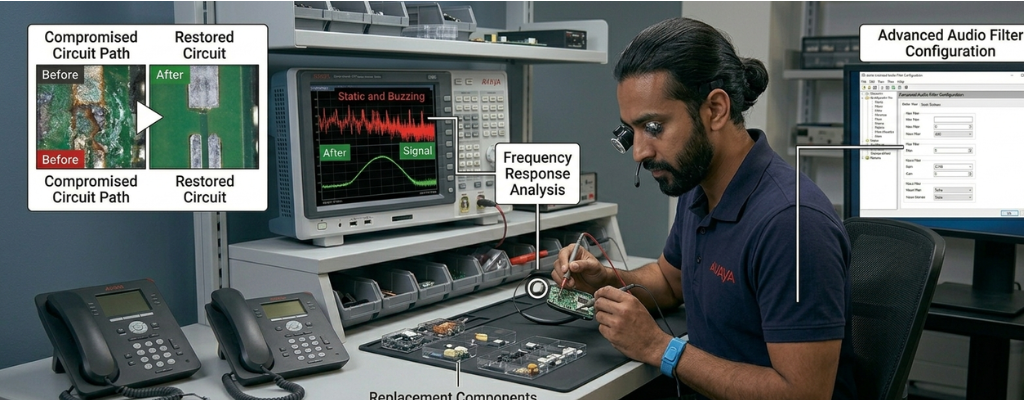
The handset or headset cord is the single biggest culprit for static and crackling on Avaya phone extensions. The wiring is thin and easily damaged, and because the two broken ends can still make partial contact, the headset continues to work, just with a terrible connection that produces constant noise.
Check these first:
Reseat the cable: Unplug the headset adapter cable from the phone and plug it back in firmly. A loose connection at the port is enough to produce constant static.
Inspect the cable for damage: Look for kinks, bends, or fraying anywhere along the cord, particularly near the connectors at each end.
Remove twist-stops: Twist-stop cord accessories, the small plastic clips designed to keep headset cords from tangling, are a documented source of static on Avaya phones. They create connection instability that can't be fixed; the only solution is to remove them entirely.
Try a known-good cable: Swap in a spare adapter cable and test immediately. If the static disappears, the original cable is the problem.
Electrical Interference From Nearby Equipment
If the connection checks out and static persists, the next place to look is the environment around the phone.
Electromagnetic interference from nearby devices is a well-documented cause of static and buzzing in headsets, smartphones, Wi-Fi routers, monitors, and fluorescent lighting, which can all introduce interference into the audio signal.
Practical steps to test this:
Move the phone temporarily to a different desk or area of the office and test again
Keep smartphones away from the desk phone and headset during calls
Check whether the static is worse near the charging base of a wireless headset. The base can pick up interference from nearby electronics
If the static comes and goes depending on your position in the office, interference from nearby electronics is almost certainly the cause. Moving the headset base or phone a few feet away from the source resolves it.
Grounding and Power Issues on the Phone System
A persistent buzzing or hum that appears on multiple phones or headsets across the office, rather than just one, points to a system-level issue rather than an individual headset problem.
A humming sound reported across multiple IP phones, but not on digital desk phones, is a classic sign of a gain or grounding issue at the system level input gain set too high on the voice port or media gateway can cause a buzzing that affects all calls through those ports.
Also check:
Expansion module grounding cables: A missing or loose grounding cable between an IP500 expansion module and the control unit causes audio interference across all phones on that module, not just one.
Power over Ethernet quality: A degraded or underpowered PoE switch can introduce electrical noise into the audio signal. Test by connecting a phone directly to a different switch and comparing audio quality.
Analog trunk lines: Static on calls coming in or going out over traditional phone lines is frequently caused by physical wiring issues, such as worn or damaged trunk cables, poor terminations, or cabling running parallel to electrical power lines, which introduces noise directly into the audio path.
Wireless Headset Interference
Wireless headsets introduce an additional interference variable, radio frequency (RF) signal congestion. An office with many wireless devices operating on similar frequencies can produce static, dropouts, and buzzing on wireless headset audio.
Steps to reduce wireless interference:
Too many wireless headsets in close proximity can exceed Bluetooth or DECT density limits, causing interference between devices. Spreading headset charging bases further apart and keeping them away from other wireless devices reduces this significantly.
Check the wireless headset's channel or frequency settings. Many DECT headsets allow manual channel selection, and switching away from a congested channel resolves persistent static
Move the headset base away from Wi-Fi routers, cordless phones, and other wireless devices
Test the headset at a different desk to confirm whether the interference is location-specific
Static on the Avaya Workplace Softphone
For users experiencing static or buzzing through the Avaya Workplace app rather than a physical phone, the cause is almost always in the computer's audio settings.
Windows sound enhancements, audio processing effects applied at the operating system level, are a documented cause of static and buzzing in headsets connected to computers. Disabling all sound effects under the Playback device's Properties in Windows Control Panel eliminates this source of interference entirely.
Check for a USB cable issue if the headset connects via USB; a damaged or low-quality USB cable introduces noise into the digital audio path. Swap the cable or try a different USB port.
If static appears only when the computer is under heavy load, running multiple applications, processing files, or during video calls, the issue may be electrical interference from the computer's internal components being picked up by the headset. Using a USB audio adapter or a higher-quality headset with better shielding resolves this.
Quick Reference: Static and Buzzing by Scenario
Static on one headset only: Check and replace the adapter cable; inspect for physical damage
Buzzing on all phones in one area: Check the expansion module grounding cable and PoE switch quality
Static only on external calls: Inspect analog trunk cabling and gain settings on the media gateway
Interference that moves with you: Identify and separate from nearby electronic devices
Wireless headset crackling: Reduce device density, change DECT channel, move base away from Wi-Fi equipment
Static in Workplace app: Disable Windows sound enhancements; check USB cable and port
Still Hearing Static?
If static and buzzing persist after working through the steps above, the problem is likely in the phone system's trunk configuration or hardware layer, not something that can be resolved from the headset end. A qualified Avaya support provider can trace the noise back to its source and resolve it without the guesswork.

We Can Help
Call us at (312) 728-7652 or fill out the form below.
Featured Posts
How to Fix Static and Buzzing on Avaya Headsets (Step-by-Step Guide) | Morgan Birgé
Fixing Static and Buzzing on Your Avaya Headset
That Noise Is Not Normal
A crackling, buzzing, or static-filled headset doesn't just make calls unpleasant; it makes your business sound unprofessional and causes people to talk over each other trying to be heard. It's also one of the most fixable problems on an Avaya phone system, once you understand what's causing it.
Static and buzzing on Avaya headsets come from a short list of sources. Working through them methodically takes far less time than guessing.
Start With the Physical Connection
The majority of static issues on corded headsets trace back to the physical connection, not the headset itself, and not the phone system.
The handset or headset cord is the single biggest culprit for static and crackling on Avaya phone extensions. The wiring is thin and easily damaged, and because the two broken ends can still make partial contact, the headset continues to work, just with a terrible connection that produces constant noise.
Check these first:
Reseat the cable: Unplug the headset adapter cable from the phone and plug it back in firmly. A loose connection at the port is enough to produce constant static.
Inspect the cable for damage: Look for kinks, bends, or fraying anywhere along the cord, particularly near the connectors at each end.
Remove twist-stops: Twist-stop cord accessories, the small plastic clips designed to keep headset cords from tangling, are a documented source of static on Avaya phones. They create connection instability that can't be fixed; the only solution is to remove them entirely.
Try a known-good cable: Swap in a spare adapter cable and test immediately. If the static disappears, the original cable is the problem.
Electrical Interference From Nearby Equipment
If the connection checks out and static persists, the next place to look is the environment around the phone.
Electromagnetic interference from nearby devices is a well-documented cause of static and buzzing in headsets, smartphones, Wi-Fi routers, monitors, and fluorescent lighting, which can all introduce interference into the audio signal.
Practical steps to test this:
Move the phone temporarily to a different desk or area of the office and test again
Keep smartphones away from the desk phone and headset during calls
Check whether the static is worse near the charging base of a wireless headset. The base can pick up interference from nearby electronics
If the static comes and goes depending on your position in the office, interference from nearby electronics is almost certainly the cause. Moving the headset base or phone a few feet away from the source resolves it.
Grounding and Power Issues on the Phone System
A persistent buzzing or hum that appears on multiple phones or headsets across the office, rather than just one, points to a system-level issue rather than an individual headset problem.
A humming sound reported across multiple IP phones, but not on digital desk phones, is a classic sign of a gain or grounding issue at the system level input gain set too high on the voice port or media gateway can cause a buzzing that affects all calls through those ports.
Also check:
Expansion module grounding cables: A missing or loose grounding cable between an IP500 expansion module and the control unit causes audio interference across all phones on that module, not just one.
Power over Ethernet quality: A degraded or underpowered PoE switch can introduce electrical noise into the audio signal. Test by connecting a phone directly to a different switch and comparing audio quality.
Analog trunk lines: Static on calls coming in or going out over traditional phone lines is frequently caused by physical wiring issues, such as worn or damaged trunk cables, poor terminations, or cabling running parallel to electrical power lines, which introduces noise directly into the audio path.
Wireless Headset Interference
Wireless headsets introduce an additional interference variable, radio frequency (RF) signal congestion. An office with many wireless devices operating on similar frequencies can produce static, dropouts, and buzzing on wireless headset audio.
Steps to reduce wireless interference:
Too many wireless headsets in close proximity can exceed Bluetooth or DECT density limits, causing interference between devices. Spreading headset charging bases further apart and keeping them away from other wireless devices reduces this significantly.
Check the wireless headset's channel or frequency settings. Many DECT headsets allow manual channel selection, and switching away from a congested channel resolves persistent static
Move the headset base away from Wi-Fi routers, cordless phones, and other wireless devices
Test the headset at a different desk to confirm whether the interference is location-specific
Static on the Avaya Workplace Softphone
For users experiencing static or buzzing through the Avaya Workplace app rather than a physical phone, the cause is almost always in the computer's audio settings.
Windows sound enhancements, audio processing effects applied at the operating system level, are a documented cause of static and buzzing in headsets connected to computers. Disabling all sound effects under the Playback device's Properties in Windows Control Panel eliminates this source of interference entirely.
Check for a USB cable issue if the headset connects via USB; a damaged or low-quality USB cable introduces noise into the digital audio path. Swap the cable or try a different USB port.
If static appears only when the computer is under heavy load, running multiple applications, processing files, or during video calls, the issue may be electrical interference from the computer's internal components being picked up by the headset. Using a USB audio adapter or a higher-quality headset with better shielding resolves this.
Quick Reference: Static and Buzzing by Scenario
Static on one headset only: Check and replace the adapter cable; inspect for physical damage
Buzzing on all phones in one area: Check the expansion module grounding cable and PoE switch quality
Static only on external calls: Inspect analog trunk cabling and gain settings on the media gateway
Interference that moves with you: Identify and separate from nearby electronic devices
Wireless headset crackling: Reduce device density, change DECT channel, move base away from Wi-Fi equipment
Static in Workplace app: Disable Windows sound enhancements; check USB cable and port
Still Hearing Static?
If static and buzzing persist after working through the steps above, the problem is likely in the phone system's trunk configuration or hardware layer, not something that can be resolved from the headset end. A qualified Avaya support provider can trace the noise back to its source and resolve it without the guesswork.
Enroll in Our Email Course

Learn How a No-Nonsense IT Strategy Benefits Your Company:
Strategies to allocate your IT budget efficiently
Enhance cybersecurity defenses on a budget
Ensure your technology investments continue to serve your business as it grows
Let’s Take Your Business to the Next Level
Above all, we promise never to hit you with hidden fees. We won’t push the "newest, fanciest, coolest" tech trends just for the sake of it. We're here to deliver reliable, integrity-driven communication solutions that work better and more efficiently than what you may be managing in-house.
To find out if managed services is the right fit for your business, contact us for a free assessment.

77 W Washington ST STE, 1705 Chicago, IL 60602
Indiana Office
114 E Joliet St
Schererville, IN 46375
77 W Washington ST STE,
1705 Chicago, IL 60602
Indiana Office
114 E Joliet St
Schererville, IN 46375

© 2026 Morgan Birgé. All Rights Reserved. Built in partnership with Tech Pro Marketing. | Privacy Policy
