
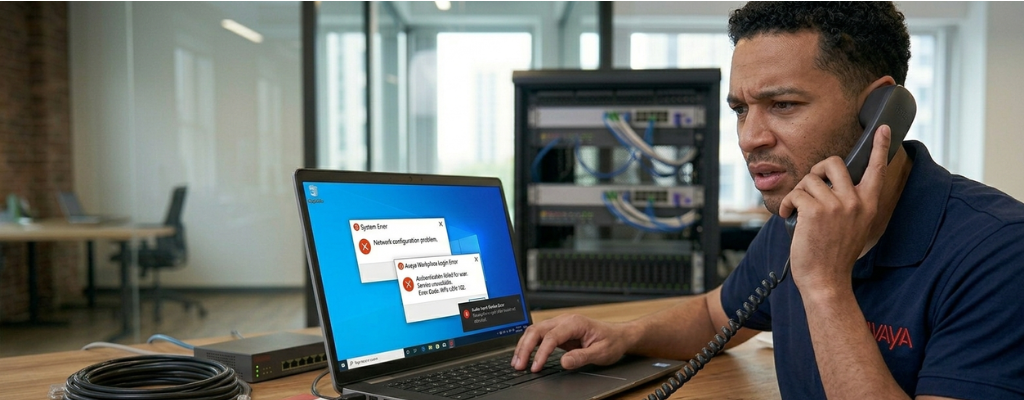
Avaya Workplace Login & Audio Errors | Troubleshooting Guide | Morgan Birgé
Avaya Workplace Login and Audio Errors: A Practical Troubleshooting Guide
When the App Won't Cooperate
Avaya Workplace is designed to turn your laptop, desktop, or mobile phone into a fully functional office extension, letting you make and receive calls from anywhere. When it works, it's genuinely useful. When it doesn't, the problems tend to fall into two categories: login errors that prevent the app from connecting at all, and audio issues that let you connect but ruin the call experience.
Both categories have clear, fixable causes. This guide walks through the most common ones in plain language.
Login Problems: Why the App Won't Connect
Wrong Credentials, And It's Not What You Think
Avaya Workplace requires three specific pieces of information to log in: your email address, your individually assigned extension number, and your Avaya IP Office user portal password, which is entirely separate from your regular work login password and your voicemail PIN. Using the wrong password is the most common login failure, and it's easy to do when there are multiple passwords in play.
If you're certain the credentials are correct and the app still won't connect, the next step is refreshing the app's configuration file.
The App Has Stale Configuration
When Avaya Workplace shows "Lost connection to the server" or refuses to receive calls even though it appears logged in, the app often needs to pull down a fresh configuration update from the server. Re-entering your login email in the app's settings triggers a fresh download of configuration and application updates, the app relaunches, and reconnects within about 30 seconds.
This is the first thing to try before reinstalling the app entirely. It resolves a surprisingly large number of persistent login and connection failures.
The App Needs a Full Reset
If refreshing the configuration doesn't work, a full app reset is the next step. Here's how:
Open the app settings via the gear icon
Navigate to the Accounts tab
Toggle off "Remember Password"
Close and reopen the app
Log in fresh with your credentials
Once logged in successfully, go back to Accounts and re-enable "Remember Password" to avoid repeating the process next time.
This clears any corrupted session data that's blocking a clean connection.
VPN and Network Access
If you're outside the office, Avaya Workplace typically requires either a VPN connection or a specifically configured external access setup to reach the phone system. If you see an "Unreachable URL" or "Problem with Server" error during login, reconnecting to VPN before tapping Next in the login screen resolves it in the majority of cases.
Confirm with your IT team which connection method your setup requires; not all Avaya IP Office environments are configured for direct internet access.
Audio Problems: When the Call Connects, but Nobody Can Hear
The Wrong Audio Device Is Selected
This is the most common audio problem by far, and it's almost always caused by the app defaulting to the wrong microphone or speaker after a device change: plugging in a headset, joining a video call in another app, or even restarting the computer.
In the desktop app, click the Manage Audio and Video Devices icon at the bottom right of the app and confirm that the correct microphone and speakers are selected. If you're using a headset, select it explicitly, and if you're switching between a headset and your computer's built-in audio, you'll need to update this setting each time.
One setting worth noting: if you see a "ZoomAudioDevice" option in the list, do not select it. It will not work with Avaya Workplace.
The App Can Hear You, but Callers Can't
If callers can hear you but you can't hear them, or the reverse, the issue is almost always a device permission or selection problem rather than a network issue.
On mobile, check these first:
Go to Settings > Privacy > Microphone and confirm that Avaya Workplace is listed and has permission enabled. Without microphone access granted at the OS level, the app cannot transmit your voice regardless of how it's configured internally.
Make sure the phone's volume is turned up. Workplace uses the call volume setting, not the media volume
If you're using a headset, unplug it and test with the device's built-in audio. If the problem disappears, the headset either isn't compatible or the app's audio output wasn't updated when it was connected.
Audio Works on Desktop but Not Over Remote Desktop
This is a hard limitation, not a configuration problem. Avaya Workplace audio does not function over a Remote Desktop connection from one computer to another. The app must be run directly on the physical device, not through a remote session. If your team is using RDP or similar tools to access work computers, they'll need to run the Workplace app locally on their own machine, not on the remote one.
Mobile-Specific Problems
The App Doesn't Ring When the Phone Is Locked
Avaya Workplace on iPhone will not ring for incoming calls when the phone is locked unless push notifications are properly configured. The app needs to be running in the background, and notification permissions must be enabled for it to receive calls in a locked state.
On Android, the fix is slightly different. Confirm that notifications are enabled for the Workplace app in Android settings and that the Avaya "A" logo is visible in the notification bar, which indicates the app is running in the background and actively registered to receive calls.
The App Keeps Logging Users Out
Periodic automatic logouts, where users are unexpectedly signed out and miss incoming calls, are a documented pattern in Avaya Workplace on mobile. Users can log back in without issue, but the interruption causes missed calls. This is typically caused by the phone's battery optimization settings killing the app in the background.
Fix it by:
Going to the device's battery settings and excluding Avaya Workplace from battery optimization
Ensuring background app refresh is enabled for Workplace on iOS
Checking that the app has permission to run unrestricted in the background on Android
When the Problem Is on the Server Side
Not every Workplace problem lives in the app or the device. Some failures originate in the IP Office configuration that the app connects to.
Intermittent missed inbound calls, where the app is logged in and registered, but calls occasionally don't arrive, are often caused by the app losing its SIP registration silently, particularly on mobile data or unstable Wi-Fi connections. Enabling a keepalive setting on the SIP connection in IP Office Manager keeps the registration alive between calls and prevents this drop-off pattern.
If one user has consistent problems while everyone else works fine, the issue is almost always in that user's IP Office profile, their extension configuration, password, or feature permissions, rather than the app itself.
Quick Reference: Common Fixes at a Glance
Can't log in: Verify you're using the IP Office portal password, not your work or email password
"Lost connection to server": Re-enter your email in settings to pull a fresh configuration file
No audio on calls: Check audio device selection in the app's Manage Audio settings
Callers can't hear you: Check microphone permissions at the OS level on mobile
App doesn't ring when locked: Enable notifications and background permissions for the app
Keeps logging out: Exclude the app from battery optimization settings
Audio fails over Remote Desktop: Run the app locally, not through an RDP session
Still Not Fixed?
If the steps above don't resolve your Avaya Workplace issue, the problem is likely in the underlying IP Office configuration rather than the app itself. A qualified Avaya support provider can identify whether the issue is in the user profile, the SIP registration settings, or the network configuration, and resolve it without the back-and-forth of trial and error.

We Can Help
Call us at (312) 728-7652 or fill out the form below.
Featured Posts
Avaya Workplace Login & Audio Errors | Troubleshooting Guide | Morgan Birgé
Avaya Workplace Login and Audio Errors: A Practical Troubleshooting Guide
When the App Won't Cooperate
Avaya Workplace is designed to turn your laptop, desktop, or mobile phone into a fully functional office extension, letting you make and receive calls from anywhere. When it works, it's genuinely useful. When it doesn't, the problems tend to fall into two categories: login errors that prevent the app from connecting at all, and audio issues that let you connect but ruin the call experience.
Both categories have clear, fixable causes. This guide walks through the most common ones in plain language.
Login Problems: Why the App Won't Connect
Wrong Credentials, And It's Not What You Think
Avaya Workplace requires three specific pieces of information to log in: your email address, your individually assigned extension number, and your Avaya IP Office user portal password, which is entirely separate from your regular work login password and your voicemail PIN. Using the wrong password is the most common login failure, and it's easy to do when there are multiple passwords in play.
If you're certain the credentials are correct and the app still won't connect, the next step is refreshing the app's configuration file.
The App Has Stale Configuration
When Avaya Workplace shows "Lost connection to the server" or refuses to receive calls even though it appears logged in, the app often needs to pull down a fresh configuration update from the server. Re-entering your login email in the app's settings triggers a fresh download of configuration and application updates, the app relaunches, and reconnects within about 30 seconds.
This is the first thing to try before reinstalling the app entirely. It resolves a surprisingly large number of persistent login and connection failures.
The App Needs a Full Reset
If refreshing the configuration doesn't work, a full app reset is the next step. Here's how:
Open the app settings via the gear icon
Navigate to the Accounts tab
Toggle off "Remember Password"
Close and reopen the app
Log in fresh with your credentials
Once logged in successfully, go back to Accounts and re-enable "Remember Password" to avoid repeating the process next time.
This clears any corrupted session data that's blocking a clean connection.
VPN and Network Access
If you're outside the office, Avaya Workplace typically requires either a VPN connection or a specifically configured external access setup to reach the phone system. If you see an "Unreachable URL" or "Problem with Server" error during login, reconnecting to VPN before tapping Next in the login screen resolves it in the majority of cases.
Confirm with your IT team which connection method your setup requires; not all Avaya IP Office environments are configured for direct internet access.
Audio Problems: When the Call Connects, but Nobody Can Hear
The Wrong Audio Device Is Selected
This is the most common audio problem by far, and it's almost always caused by the app defaulting to the wrong microphone or speaker after a device change: plugging in a headset, joining a video call in another app, or even restarting the computer.
In the desktop app, click the Manage Audio and Video Devices icon at the bottom right of the app and confirm that the correct microphone and speakers are selected. If you're using a headset, select it explicitly, and if you're switching between a headset and your computer's built-in audio, you'll need to update this setting each time.
One setting worth noting: if you see a "ZoomAudioDevice" option in the list, do not select it. It will not work with Avaya Workplace.
The App Can Hear You, but Callers Can't
If callers can hear you but you can't hear them, or the reverse, the issue is almost always a device permission or selection problem rather than a network issue.
On mobile, check these first:
Go to Settings > Privacy > Microphone and confirm that Avaya Workplace is listed and has permission enabled. Without microphone access granted at the OS level, the app cannot transmit your voice regardless of how it's configured internally.
Make sure the phone's volume is turned up. Workplace uses the call volume setting, not the media volume
If you're using a headset, unplug it and test with the device's built-in audio. If the problem disappears, the headset either isn't compatible or the app's audio output wasn't updated when it was connected.
Audio Works on Desktop but Not Over Remote Desktop
This is a hard limitation, not a configuration problem. Avaya Workplace audio does not function over a Remote Desktop connection from one computer to another. The app must be run directly on the physical device, not through a remote session. If your team is using RDP or similar tools to access work computers, they'll need to run the Workplace app locally on their own machine, not on the remote one.
Mobile-Specific Problems
The App Doesn't Ring When the Phone Is Locked
Avaya Workplace on iPhone will not ring for incoming calls when the phone is locked unless push notifications are properly configured. The app needs to be running in the background, and notification permissions must be enabled for it to receive calls in a locked state.
On Android, the fix is slightly different. Confirm that notifications are enabled for the Workplace app in Android settings and that the Avaya "A" logo is visible in the notification bar, which indicates the app is running in the background and actively registered to receive calls.
The App Keeps Logging Users Out
Periodic automatic logouts, where users are unexpectedly signed out and miss incoming calls, are a documented pattern in Avaya Workplace on mobile. Users can log back in without issue, but the interruption causes missed calls. This is typically caused by the phone's battery optimization settings killing the app in the background.
Fix it by:
Going to the device's battery settings and excluding Avaya Workplace from battery optimization
Ensuring background app refresh is enabled for Workplace on iOS
Checking that the app has permission to run unrestricted in the background on Android
When the Problem Is on the Server Side
Not every Workplace problem lives in the app or the device. Some failures originate in the IP Office configuration that the app connects to.
Intermittent missed inbound calls, where the app is logged in and registered, but calls occasionally don't arrive, are often caused by the app losing its SIP registration silently, particularly on mobile data or unstable Wi-Fi connections. Enabling a keepalive setting on the SIP connection in IP Office Manager keeps the registration alive between calls and prevents this drop-off pattern.
If one user has consistent problems while everyone else works fine, the issue is almost always in that user's IP Office profile, their extension configuration, password, or feature permissions, rather than the app itself.
Quick Reference: Common Fixes at a Glance
Can't log in: Verify you're using the IP Office portal password, not your work or email password
"Lost connection to server": Re-enter your email in settings to pull a fresh configuration file
No audio on calls: Check audio device selection in the app's Manage Audio settings
Callers can't hear you: Check microphone permissions at the OS level on mobile
App doesn't ring when locked: Enable notifications and background permissions for the app
Keeps logging out: Exclude the app from battery optimization settings
Audio fails over Remote Desktop: Run the app locally, not through an RDP session
Still Not Fixed?
If the steps above don't resolve your Avaya Workplace issue, the problem is likely in the underlying IP Office configuration rather than the app itself. A qualified Avaya support provider can identify whether the issue is in the user profile, the SIP registration settings, or the network configuration, and resolve it without the back-and-forth of trial and error.
Enroll in Our Email Course

Learn How a No-Nonsense IT Strategy Benefits Your Company:
Strategies to allocate your IT budget efficiently
Enhance cybersecurity defenses on a budget
Ensure your technology investments continue to serve your business as it grows
Let’s Take Your Business to the Next Level
Above all, we promise never to hit you with hidden fees. We won’t push the "newest, fanciest, coolest" tech trends just for the sake of it. We're here to deliver reliable, integrity-driven communication solutions that work better and more efficiently than what you may be managing in-house.
To find out if managed services is the right fit for your business, contact us for a free assessment.
77 W Washington ST STE, 1705 Chicago, IL 60602
Indiana Office
114 E Joliet St
Schererville, IN 46375
© 2026 Morgan Birgé. All Rights Reserved. Built With MSP Sites | Privacy Policy
