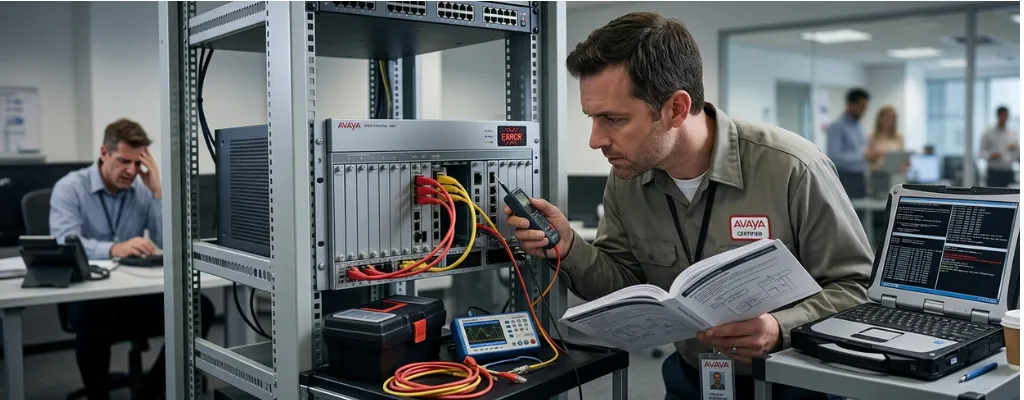
Avaya IP500 Troubleshooting Guide: Fix Muffled Calls, Module Failures & Port Errors | Morgan Birgé
Avaya IP500 Troubleshooting: Muffled Calls, Module Failures, Analog Port Errors, and Upgrade Headaches
Avaya IP500
The Avaya IP500 V2 is a workhorse. It has powered the phone systems of small and mid-size businesses for over a decade, and many of those systems are still running in offices today, reliably enough to stay, stubbornly enough to cause real headaches when something goes wrong. The problem isn't that the IP500 is a bad system. It's that it's an aging one, and aging hardware combined with evolving software creates a specific category of problems that aren't always easy to diagnose without knowing what to look for.
This guide covers the four most common failure categories that IP500 users encounter: muffled or degraded call audio, expansion module failures, analog port errors, and the particular brand of chaos that can follow a firmware upgrade. Each of these has identifiable causes and practical responses, and understanding them is the first step toward getting your phones working reliably again.
Muffled Calls: When Everyone Sounds Like They're Underwater
Muffled or distorted audio on the IP500 is one of the most disruptive problems a business can face, because it affects every conversation until it's fixed. The frustrating part is that muffled audio rarely has a single obvious cause; it tends to be the combined result of two or three small factors that each contribute to degraded sound quality.
The most common culprit in IP500 environments is a missing or poorly configured QoS (Quality of Service) policy on the network. Voice calls are extremely sensitive to network congestion. When large file transfers, video streams, or routine backup jobs compete with voice traffic on the same network without any traffic prioritization in place, the audio suffers first. Your employees experience it as muffled voices, robotic speech, or words that cut in and out mid-sentence. The fix isn't in the IP500 itself; it's on the network switches and router, where voice traffic needs to be flagged as high-priority so it moves ahead of everything else.
The second major cause of muffled audio on the IP500 is analog line interference. The IP500 connects to traditional phone lines through analog trunk cards, and those connections are sensitive to electrical noise from nearby equipment, such as power strips, HVAC systems, fluorescent lighting, or poorly grounded cabling. If the muffled audio appears specifically on calls that come in or go out over traditional phone lines (rather than internet-based SIP calls), the issue is almost certainly in the physical layer: the cables, the grounding, or the card itself. Swapping the patch cable connecting the analog card to the wall jack, checking that all expansion modules have proper grounding cables attached, and verifying that the cabling doesn't run parallel to power lines will resolve the majority of these cases.
Module Failures: When Half the Phones Stop Working
The IP500 V2 supports expansion modules that add phone capacity, typically Digital Station (DS) modules that power Avaya digital desk phones. When these modules fail, the result is that a group of phones goes completely dark, often all at once. A failing DS16 module with eight dead ports, where every phone tested across those ports shows the same problem, but the remaining eight ports work fine, is a classic hardware failure pattern. The module is partially functional, which makes it harder to diagnose than a complete outage.
The first thing to check when a module appears to have failed isn't the module itself; it's the firmware. When an expansion module flashes a red center LED continuously, it's typically trying to load firmware from the system's SD card but failing to find or retrieve it. A firmware version mismatch between the SD card and what the expansion module expects is one of the most common causes of modules that appear dead but are actually recoverable. Before replacing hardware, verify that the firmware files on the IP500's SD card are complete and match the version the expansion module is designed to run.
The grounding cable is another frequently overlooked factor in expansion module instability. Avaya recommends a dedicated grounding cable connecting each expansion module to the control unit; without it, modules can experience intermittent failures, communication errors with the control unit, and the persistent red LED that signals an inability to initialize correctly. It's a small physical detail that gets missed during installation and causes ongoing headaches for years afterward.
If firmware and grounding checks don't resolve the issue, the module itself may need to be replaced. IP500 expansion modules are available as refurbished units through third-party repair vendors at a fraction of the cost of new hardware, a practical option for organizations that want to extend the life of their IP500 without a full system replacement.
Analog Port Errors: Lines That Ring but Won't Connect
Analog port errors on the IP500 are particularly frustrating because they tend to be inconsistent; calls fail sometimes but not always, making the problem difficult to reproduce and easy to dismiss as a carrier issue. The truth is that analog port failures on the IP500 are almost always either a hardware problem with the trunk card, a configuration mismatch, or an issue with the physical phone line coming from the carrier.
The simplest diagnostic step is to move the phone line to a different port on the analog trunk card and test again. If the problem follows the line to the new port, the carrier's line is the issue. If the problem stays on the original port regardless of which line is connected, the port itself is faulty. When certain PSTN ports behave differently, with calls on some ports routing correctly while calls on adjacent ports go straight to a carrier voicemail or fail to route at all, the cause is almost always that only specific ports on the trunk card are active and correctly configured, while others are mapped incorrectly or simply unused. Verifying which ports are enabled in IP Office Manager under the trunk card settings takes less than ten minutes and resolves a surprising number of these cases.
One edge case worth knowing: the IP500 allows analog ports to be configured for external paging rather than standard trunk operation. A port set to paging mode will always appear busy and cannot receive or make standard calls, a configuration state that gets set once and forgotten, causing confusion for years until someone checks the port settings directly.
Upgrade Headaches: When the Update Makes Things Worse
Upgrading the IP500 firmware is one of the higher-risk maintenance activities in any IP Office environment, and the risk isn't always obvious until something breaks. The most predictable failure pattern is the expansion module that worked perfectly before the upgrade and won't initialize properly afterward. When firmware on the SD card doesn't match what the expansion module expects after an upgrade, the module enters a state where it continuously attempts to load software it can't find. The system appears to boot cleanly, but the module's LED stays red and the phones it serves remain offline. Running the Upload System Files process in IP Office Manager after every firmware upgrade, to ensure the SD card contains the correct version-matched files, prevents this scenario in the majority of cases.
The second common upgrade failure involves the IP500's SD card itself. The SD card holds the system configuration, firmware binaries, and voice prompt files. If the SD card develops a read error or becomes corrupted during an upgrade, which is more likely as the card ages, the system may boot into a degraded state with missing features, lost configuration, or expansion modules that won't come online. Replacing the SD card and restoring from a pre-upgrade configuration backup is the recovery path, which is why that backup is non-negotiable before any upgrade begins.
The broader point is that IP500 upgrades require a coordinated approach, updating the control unit firmware, verifying the SD card contents, checking expansion module initialization, and confirming that Voicemail Pro and any desk phone firmware are also updated to matching versions. Treating the upgrade as a single step rather than a multi-component process is the root cause of most post-upgrade failures.
What This Means for Your Business
The IP500 is a capable system that many businesses have gotten years of good service from, and in the right configuration, it can continue to serve well. But it's a platform that rewards attention to detail and punishes gaps in preparation. Muffled calls, dead modules, analog port failures, and post-upgrade breakage are all solvable problems. They just require knowing where to look and having the expertise to address the right layer of the problem rather than the most visible symptom.
Avaya IP500 Support
If your Avaya IP500 is showing any of the symptoms described here, or if you're planning an upgrade and want to make sure it doesn't disrupt your business, Avaya support providers can help. Whether it's a configuration audit, a post-upgrade recovery, or a conversation about whether it's time to move to a more modern platform, the goal is always the same: phones that work reliably, without the guesswork. Reach out at morganbirge.com to start the conversation.